Air-Gapped Profile TSB Workflow
This page explains step-by-step how the workflow of using SKA keys in an airgapped environment works.
Request Workflow
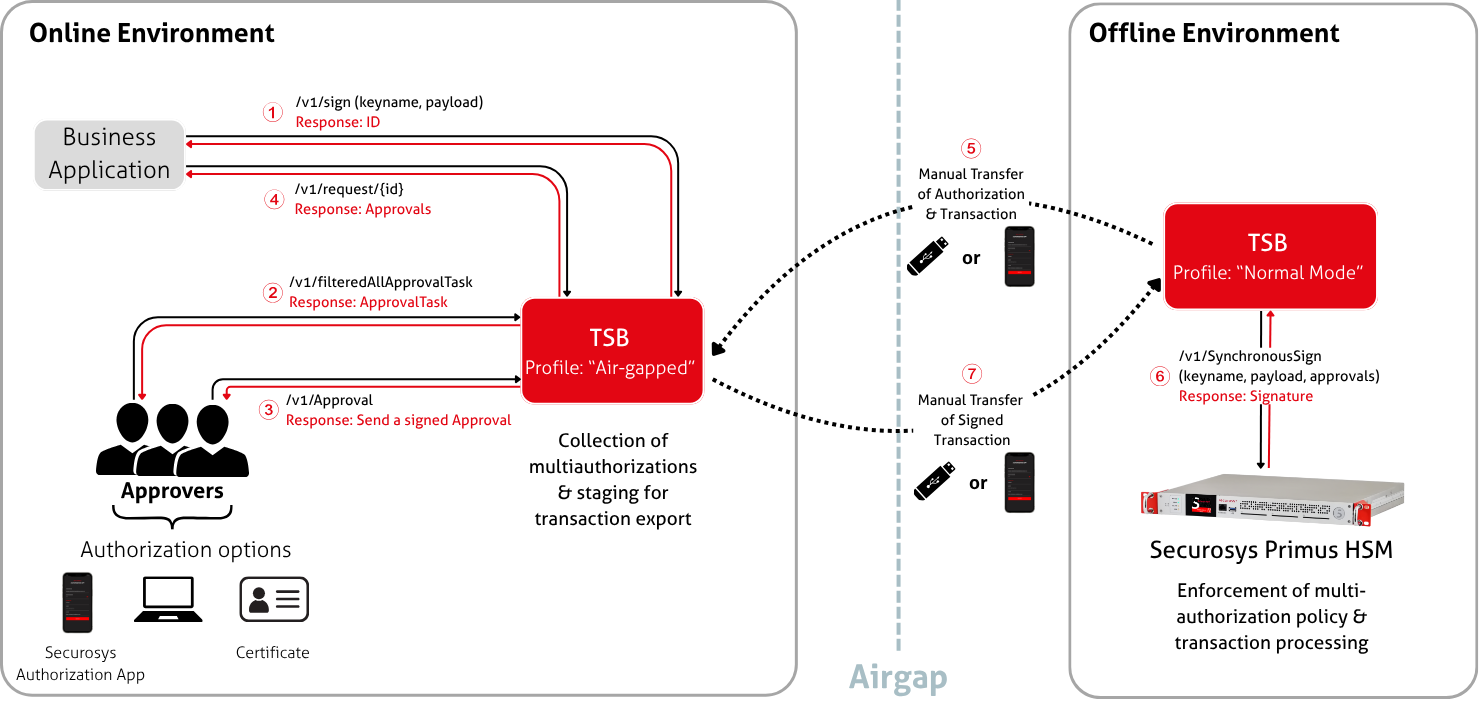
1. Creating Key Usage Request (Signature/Modification/Block/Unblock)
A business application requests a usage of the SKA key. The "Air-Gapped" Profile TSB records the request and returns a request ID.
Usually, this is a request for a signature with a specific key (via POST /v1/sign).
Alternatively, it can be a request to modify the key attributes or to block/unblock the key.
For simplicity, the subsequent text only talks about "signature requests".
2. Fetching Approval Tasks
The approval clients (such as the Securosys Authorization App) retrieve their pending approval tasks
with all information necessary to authorize them POST /v1/filteredAllApprovalTask.
3. Authorization of Approval Tasks
The approval client authorizes (either by approving or canceling) the signature request with POST /v1/approval.
4. Fetching the Request Status
The business application polls the request status with GET /v1/request/{id}.
Once the approvals are complete but the transaction is waiting to be transferred to the offline environment,
the status is "PENDING" and result is Execution shall be made with offline HSM.
{
"id": "9f03da93-2f07-4ca1-a0d1-f41f50f76c25",
"status": "PENDING",
"executionTime": null,
"approvedBy": ["MIIBIjANBgkqhkiG9w0BAQEFAAOCAQ8AMIIBCgKCAQEA5f1iLRw66Bw7sJQ+GwnGsccZygLGpT9wdmx7qyHTHZx1h/c3NtyI3hKvUeOICCWK1MTBWlhTviCavRHLQkM+GI7DZwR4R+GFMLX6R5H7QCp+uPx9R1If4+Au0ae75Laa9UhyaW+6m6xQVa4MB72fYUl+hCUJZwKHVbnQa7synv8RwWo6kNG6ARoZOOpJ2TU8SH3PKEcLRBImSl5G1vvJ9F/VORyXO0d2RermrJ19DFPS/xzDDisV3/uO77Dp+DlT6LIFJ6qzETSwe1cM+uQrqiSlH33pbFJVBf87lMZlgL4EuKJ2aHJhS/DZVZCsKiR5sX5xEk1Jkg3DsVbZKg1rEQIDAQAB"],
"notYetApprovedBy": [],
"rejectedBy": [],
"result": "Execution shall be made with offline HSM",
"inputOfflineHsm": {
  "signRequest": {
  "payload":  "aGFycm8=",
  "payloadType": "UNSPECIFIED",
  "signKeyName": "MSI-OnlineKey",
  "signatureAlgorithm": "SHA224_WITH_RSA_PSS",
  "signedApprovals": ["fAIAAFUQMAAsAAAAOwAEAAEAAAACEBEATVNJLVN0YW5kYWxvbmVLZXkAAABXEAUAaGFycm8AAABWEBgBMIIBFDANBgkqhkiG9w0BAQsFAAOCAQEAcrwMQF4xdnFRjRmgQie229VKQ7Q8nrSTR7c3Lva+4pPK2FMN7+Wz8ig4lRGgeb9XhEj/BWNxV1gDX8w1N5fd//JxR5b8yqCBGYEiSkjx3yOmA29Q8kUVvnbQ3jgVvqWUABOtMzcNC9hQhPPhwtlnpggbq4l2gG9xOUDyXDj+bcZZqVUsc2d7bcldDmI3jpch8YZAv3IH+lkg9R8bmjpCu1KhwD3jGJjXE+lJguvrItmBr0OhJAsfnArJIegqZKEMSjpv3GFlCbbA3jY270AoAj/MYkNzpQ8HMbcqSR/w7RqwaYrvaequLUTbQrZ9qqSDoNVGz2lpJi2K12uRraz04VIQJgEwggEiMA0GCSqGSIb3DQEBAQUAA4IBDwAwggEKAoIBAQDl/WItHDroHDuwlD4bCcaxxxnKAsalP3B2bHurIdMdnHWH9zc23IjeEq9R44gIJYrUxMFaWFO+IJq9EctCQz4YjsNnBHhH4YUwtfpHkftAKn64/H1HUh/j4C7Rp7vktpr1SHJpb7qbrFBVrgwHvZ9hSX6EJQlnAodVudBruzKe/xHBajqQ0boBGhk46knZNTxIfc8oRwtEEiZKXkbW+8n0X9U5HJc7R3ZF6uasnX0MU9L/HMMOKxXf+47vsOn4OVPosgUnqrMRNLB7Vwz65CuqJKUffelsUlUF/zuUxmWAvgS4onZocmFL8NlVkKwqJHmxfnESTUmSDcOxVtkqDWsRAgMBAAEAAA=="]
    }
  }
}
5. Transporting the Authorized Request(s)
The contents of inputOfflineHsm need to be transferred to the offline environment.
This can be done by the following means:
- USB stick: Store the contents of
inputOfflineHsmon a USB stick and transfer that to a computer in the offline environment. - QR code (generic):
- The online TSB can output the request as a QR code.
The
GET /v1/request/qrCode/{id}endpoint returns a PNG image containing one or more QR codes. - Transfer the QR codes to the offline environment using a mechanism of your choice (for example, print them out).
- The online TSB can output the request as a QR code.
The
- Securosys Authorization App: Scan the QR codes from the TSB. This stores the signature request inside the app's local storage. Transfer the phone with the app to the offline environment. See this tutorial.
The GET /v1/request/qrCode/{id} endpoint is only available if the TSB is deployed in air-gapped mode.
6. Signing the Request
Once in the offline environment, use a local device/phone/computer to send the signature request to the offline TSB. The TSB forwards the request to the HSM, which signs it and returns the result. Since all approvals are available, this is a synchronous operation.
- USB stick:
Connect the USB stick to a local computer.
Extract the
inputOfflineHsmand make aPOST /v1/synchronousSignrequest. - QR code (generic):
Decode the QR codes. With the content, make a
POST /v1/synchronousSignrequest. - Securosys Authorization App: Connect the phone to the same network as the offline TSB. Click SEND TO OFFLINE TSB.
The HSM checks the authorization data against the key's SKA policy and the specified payload. If the policy criteria are met, the HSM signs the payload and returns the signature to the local computer/the Securosys Authorization App.
7. Transporting Signature
Transport the signature result back to the online environment.
- USB stick: Copy the result to the USB stick and transfer the stick.
- QR code (generic): Encode the result as a QR code, print it out, and scan it back in the online environment.
- Securosys Authorization App: The app automatically stores the result. Transfer the phone to the online environment.
Once back in the online environment, provide the result to the Air-gapped Profile TSB:
- USB stick:
Make a request to
PUT /v1/resultFromOfflineHsm. The TSB changes the request's status toEXECUTED. Business applications that pollGET /v1/request/{id}will see the resulting signature. - QR code (generic): Same as USB stick.
- Securosys Authorization App: Click SEND TO ONLINE TSB.
The GET /v1/resultFromOfflineHsm endpoint is only available if the TSB is deployed in air-gapped mode.